
Getting started as a referee
As a REFEREE, RefMatch is where your refereeing season lives - your development record, your appointments, your availability, and your expenses, all in one place.
Who can do this?
This guide is for officials with the REFEREE role. Everything described here is limited to your own data - you cannot view other officials' appointments or availability.
Your home screen
When you log in, you land on My Overview.
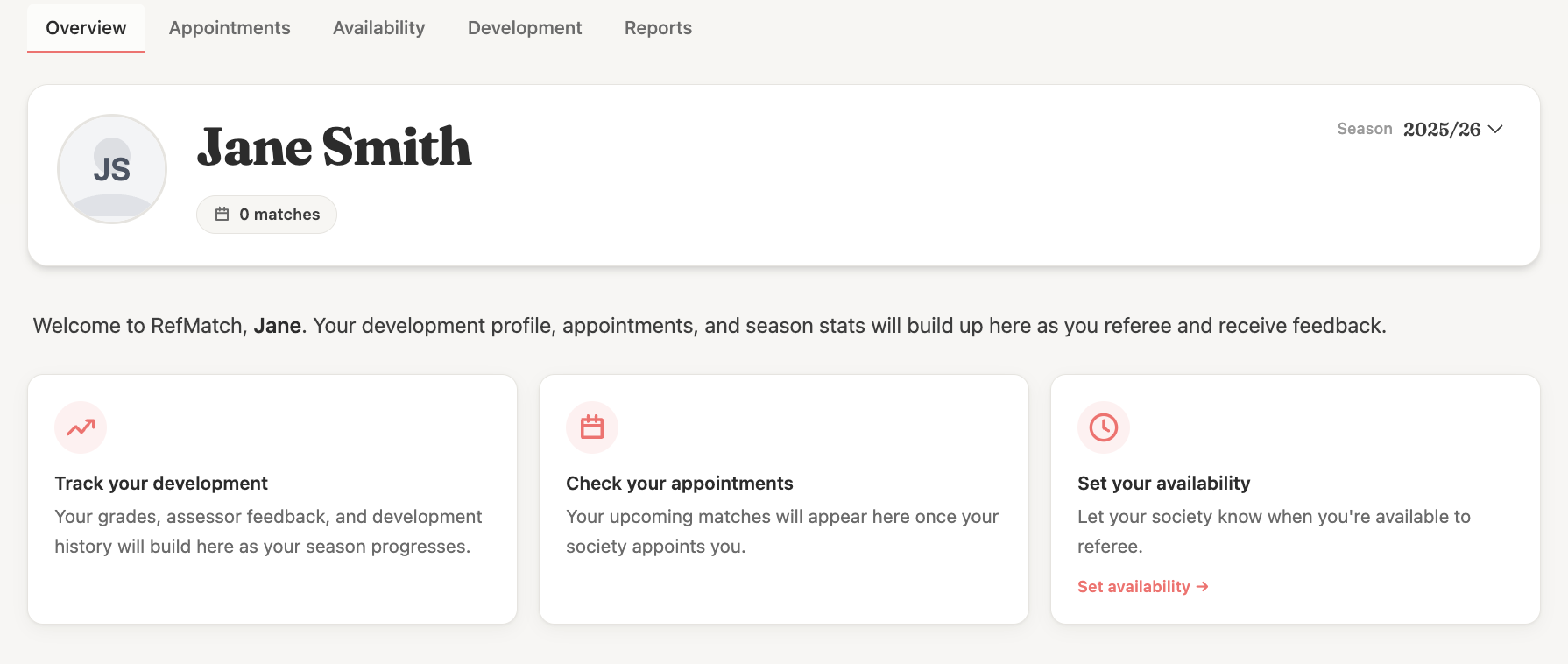
This shows:
- Your development summary - current grade and recent assessor feedback
- Your upcoming confirmed appointments
- Any pending appointments waiting for your confirmation
- Your availability summary for the coming weeks
- Any outstanding actions (e.g. expenses to submit, reflections to complete)
Step 1 - Set your availability
Before the appointments team can assign you to fixtures, you need to tell them when you are available to referee.
Go to Availability (or find it in your overview) and mark your availability for upcoming weekends.
- Available - you can referee on this date
- Unavailable - you are not available (travelling, injured, prior commitment)
- Leave blank if you haven't decided yet - the appointments team will see this as no response
Tip: Set your availability as early as possible. The appointments team plans fixtures a week or two in advance. If your availability is not set, you may miss out on appointments.
See Managing your availability for more detail.
Step 2 - Confirm appointments
When the appointments team assigns you to a fixture, you will receive a notification. The appointment will appear on your overview with a pending status.
To confirm:
- Go to My Appointments
- Click on the pending appointment
- Review the fixture details (date, venue, competition, teams)
- Click Confirm to accept, or contact your appointments team if you cannot make it
Once you confirm, the appointment status changes to confirmed and the appointments team is notified.
Step 3 - View your match details
On the day of the match, use My Appointments to access full fixture information:
- Venue address and directions
- Home and away team contacts
- Your role on the day (referee, AR1, AR2, assessor)
- Any notes added by the appointments team
Step 4 - Submit expenses
After a match, submit your travel and other expenses via Finances > New claim.
Enter:
- Date of the match
- Mileage or other costs
- Any supporting notes
Your society's treasurer will review and mark your claim as paid when processed.
See Submitting an expense claim.
Step 5 - Check your development record
Your Development tab is where your refereeing progression is tracked. You can see:
- Your current grade and grading history
- Assessor feedback from matches where a MOD or MOC was present
- A timeline of your season - reports, grade changes, and milestones
You do not need to do anything to maintain this - it builds automatically as your society logs reports and feedback. Check it regularly to understand how you are progressing and what your assessors are focusing on.
See Your development record for a full walkthrough.
What else can you do in RefMatch?
- Reflections - your society may ask you to complete a self-reflection after certain matches.
- Your profile - keep your contact details and grading up to date under your account settings.