
Viewing and confirming appointments
When the appointments team assigns you to a fixture, you will receive a notification. You then need to confirm the appointment in RefMatch to lock it in.
Who can do this?
| Role | Can view own appointments? | Can confirm? |
|---|---|---|
| Referee | Yes | Yes |
| All other roles | Limited - role-specific | No (they confirm their own) |
Note: Referees can only see their own appointments. Appointments managers and society admins can see all appointments.
Finding your appointments
Go to My Appointments from the navigation or your overview screen.
Your appointments are listed in date order and grouped into:
- Upcoming - matches in the future
- Past - completed matches
Each appointment card shows:
- Date and kickoff time
- Venue
- Competition and match (home team vs away team)
- Your role (Referee, AR1, AR2, or Assessor)
- Current status (
pendingorconfirmed)
Confirming an appointment
When you receive a new appointment, its status is pending. You must confirm it so the appointments team knows you are available and committed.
- Find the appointment in My Appointments (it will be highlighted as pending)
- Click on the appointment to open the detail view
- Review the fixture details carefully - date, venue, your role
- Click Confirm appointment
- The status changes to
confirmedand the appointments team is notified
Tip: Confirm appointments promptly. If the appointments team does not hear back within a few days, they may need to reassign the fixture.

Querying or declining an appointment
If you cannot make the fixture or have a query, do not ignore the appointment - contact your appointments secretary directly. RefMatch does not currently have a built-in decline button for officials.
If you have already confirmed and your situation changes, contact your appointments secretary as soon as possible.
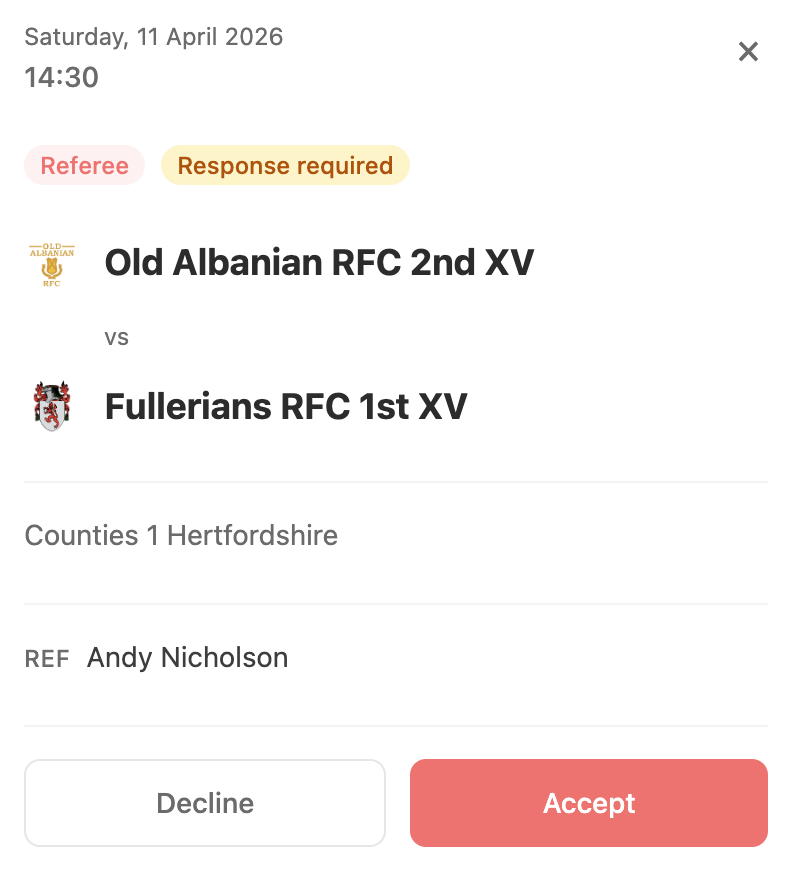
Appointment detail view
The appointment detail page shows full fixture information:
| Field | Description |
|---|---|
| Date and kickoff | Scheduled start time (local time) |
| Venue | Ground name and address |
| Competition | League or cup competition name |
| Home team | Home side |
| Away team | Away side |
| Your role | Referee, AR1, AR2, or Assessor |
| Panel | Other officials assigned (if visible to you) |
| Notes | Any notes added by the appointments team |
What happens after the match?
Once the match date has passed:
- Your appointment moves to Past
- You can submit an expense claim for the match - see Submitting an expense claim
- If a development report has been written for the match, you will be notified when it is available - see RMDE report workflow