
Creating a match
A match in RefMatch is the foundational record for a fixture - it holds the date, venue, competition, teams, and the list of official roles that need to be filled.
Once a match exists, the appointments team can assign officials to it.
Who can do this?
| Role | Can create matches? |
|---|---|
| Society Admin | Yes |
| Appointments Manager | Yes |
| Referee | No |
| MOD / MOC | No |
| Training Team | No |
Creating a single match
- Go to Matches in the main navigation.
- Click New match (top right).
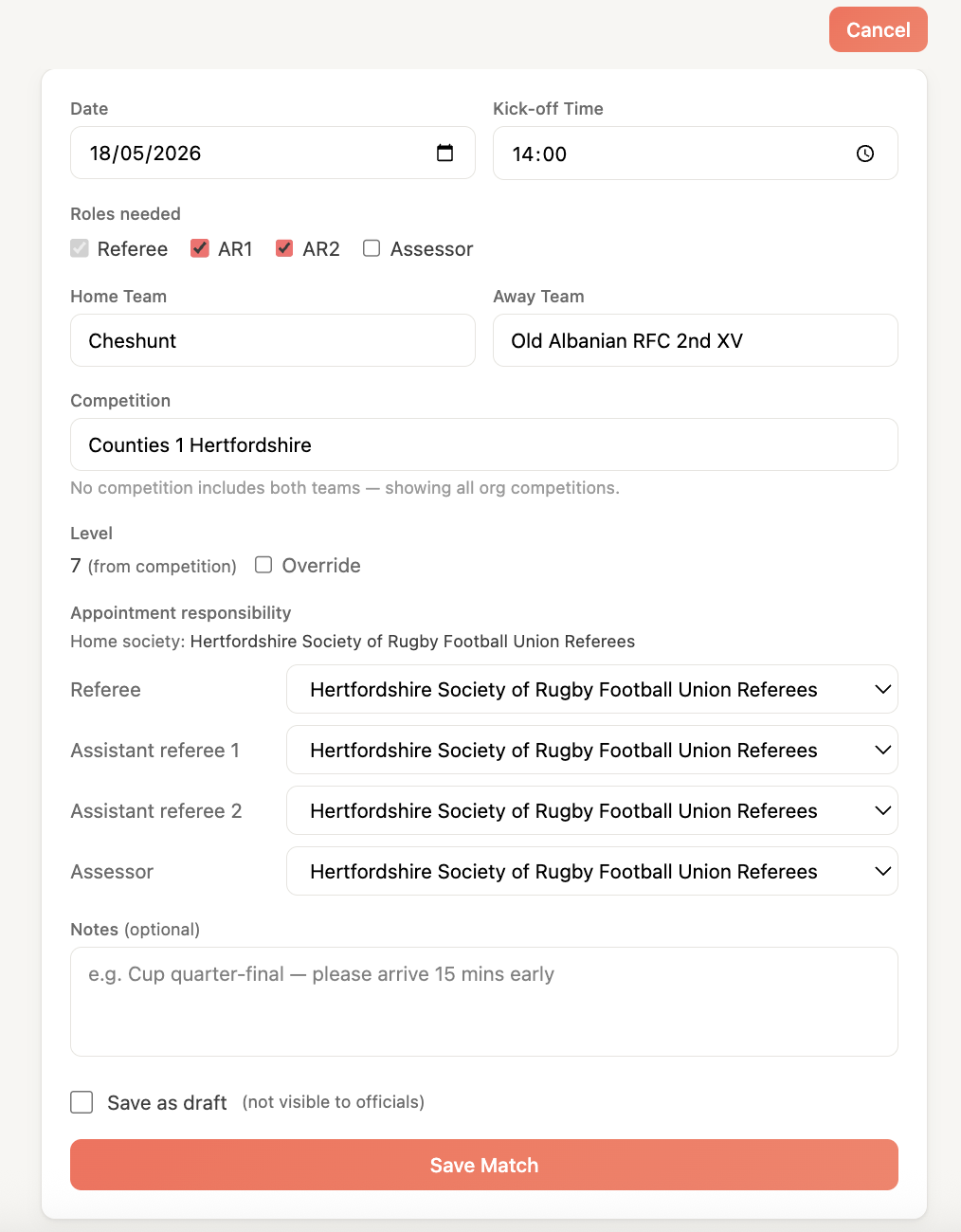
- Fill in the match details:
- Date and kickoff time - the scheduled start time
- Venue - start typing to search existing venues, or enter a new one
- Competition - select from the competitions configured in your structure
- Home team and Away team - select from the teams in your structure
- Required roles - which official positions this match needs (ref, AR1, AR2, assessor). Defaults to all four.
- Notes (optional) - internal notes visible to the appointments team only
- Click Save to create the match.
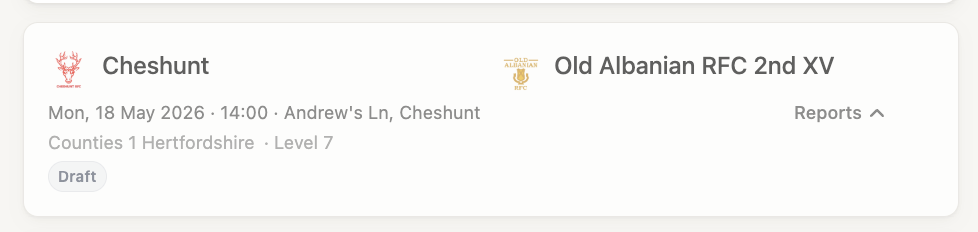
The match is created with draft status. It will not be visible to referees until it is confirmed.
Structure not set up yet?
If the competition, teams, or venue you need are not in the dropdown, a society admin needs to add them in Admin > Structure first.
Match statuses
A match moves through a defined lifecycle as the appointments team works through it.
draft→confirmed→completed
| Status | Visible to officials? | Can assign officials? | Description |
|---|---|---|---|
| draft | No | Yes (internal only) | Work in progress, not yet published |
| confirmed | Yes | Yes | Published - officials can see it |
| completed | Yes | No | Match has been played |
| cancelled | No | No | Match will not go ahead |
To move a match from draft to confirmed, open the match and click Confirm match.
Before you confirm
Confirming a match notifies any officials already assigned. Only confirm matches once the date, venue, and teams are finalised.
Editing a match
Open a match from the Matches list and click the edit icon (pencil) on any field you want to update.
Changes to confirmed matches (date, venue, teams) are immediately visible to assigned officials. If a change is significant, consider notifying those officials directly.
Required roles
When you create a match, you set which official roles are needed. This determines which slots appear in the appointment queue.
| Role | Description |
|---|---|
| Referee | The match referee |
| AR1 | First assistant referee / touch judge |
| AR2 | Second assistant referee / touch judge |
| Assessor | A match official developer observing and assessing |
For lower-level matches, you may only need a referee with no assistant referees. In that case, uncheck AR1 and AR2 when creating the match.
Importing matches in bulk
For societies with a large fixture list, you can import from a CSV file.
- Go to Matches and open the Import menu.
- Download the CSV template.
- Fill in your match data - one row per match.
- Upload the completed CSV.
- Review the preview and resolve any errors.
- Click Import to create all matches.
The CSV import validates required fields (date, competition, teams), team and competition names against your structure, and date format (YYYY-MM-DD). Any rows with errors are flagged - fix them and re-import, or skip and create those matches manually.
What happens next?
Once a match is confirmed:
- It appears in the appointments queue for the appointments team.
- Officials can see the match in the list (without seeing who else is assigned).
- The appointments team can assign officials - see Assigning officials to a match.