
Getting started as an appointments team member
As an APPOINTMENTS_MANAGER, your job in RefMatch is to create match fixtures, view official availability, and assign referees and assistant referees to each match.
Who can do this?
| Role | Access |
|---|---|
| Society Admin | Full access |
| Appointments Manager | Full access to fixtures and appointments |
| Referee | View own appointments only - cannot assign |
| All other roles | No appointments access |
Your core workflow
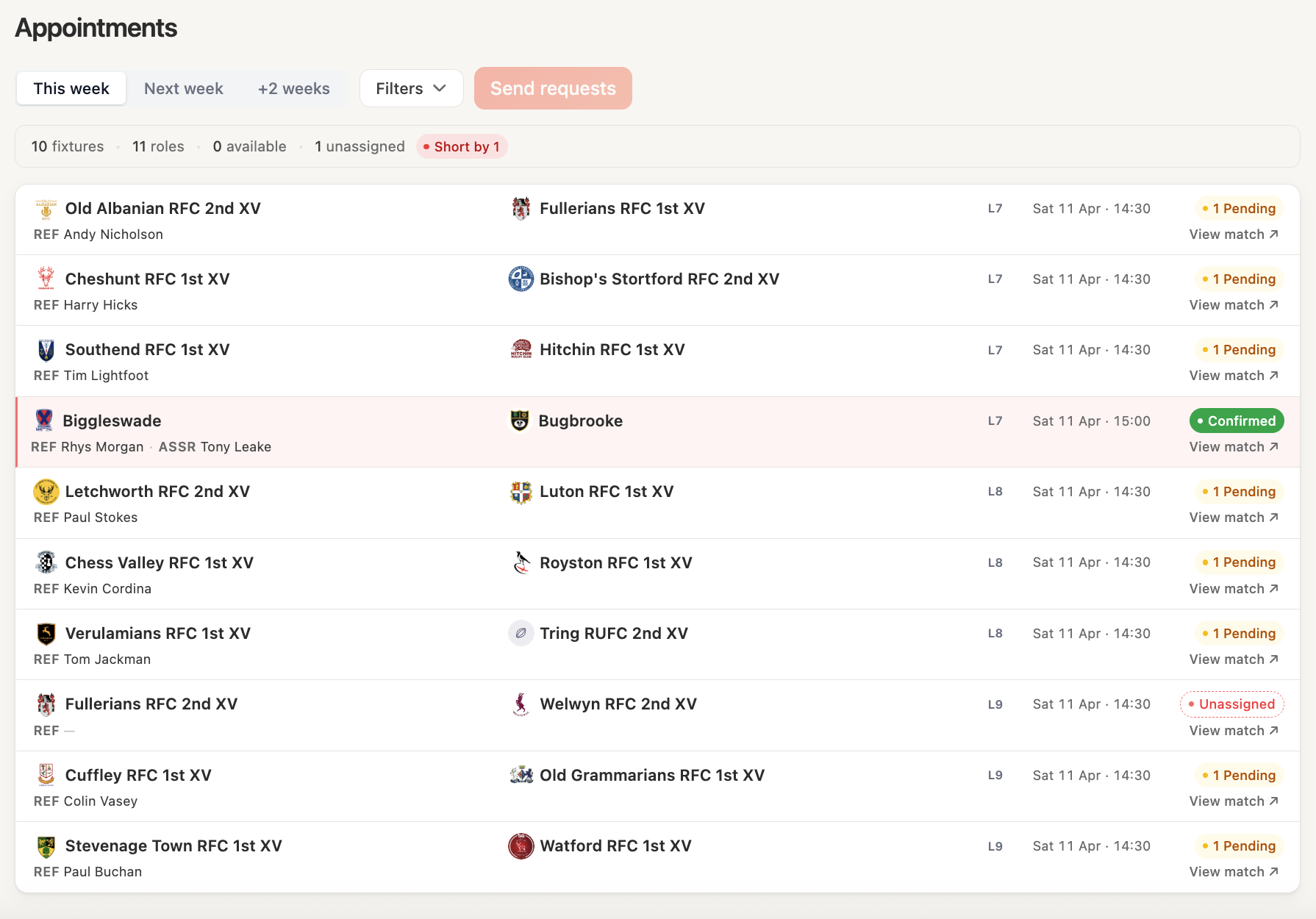
The appointments cycle in RefMatch follows this pattern each week:
Create fixtures -> Officials set availability -> Assign officials -> Officials confirm -> Match dayStep 1 - Create match fixtures
Go to Matches and click New match.
For each fixture you will need:
- Date, kickoff time, and venue
- Competition (from your structure)
- Home team and away team
- Required roles (referee, AR1, AR2, assessor - defaults to all four)
New fixtures start with a draft status. You can create fixtures in bulk by importing a CSV file - see Importing fixtures.
Tip: Create all fixtures for the coming fortnight at once, then work through assigning officials. This gives officials time to see upcoming matches and set their availability.
Step 2 - Check availability
Before assigning, review official availability for the fixture date.
On the Appointments page, each official's availability for the selected date is shown. Availability is colour-coded:
- Available - official has confirmed they can referee on this date
- Unavailable - official has marked themselves unavailable
- No response - official has not yet set availability for this date
Note: You can see all officials' availability because your role includes
AVAILABILITY_VIEW_ALL. Referees can only see their own.
Step 3 - Assign officials
From the Appointments page, work through the appointment queue (the walkthrough).
For each match, assign:
- Referee
- Assistant Referee 1 (AR1)
- Assistant Referee 2 (AR2)
- Assessor (if required)
When you assign an official, their appointment status changes to pending and they receive an invitation notification.
See Assigning officials to a match for a detailed walkthrough.
Step 4 - Monitor confirmations
Officials must confirm their appointment in RefMatch. You can track this on the Appointments page - pending appointments are highlighted.
If an official does not confirm within your society's deadline, you may need to reassign.