
Managing members and roles
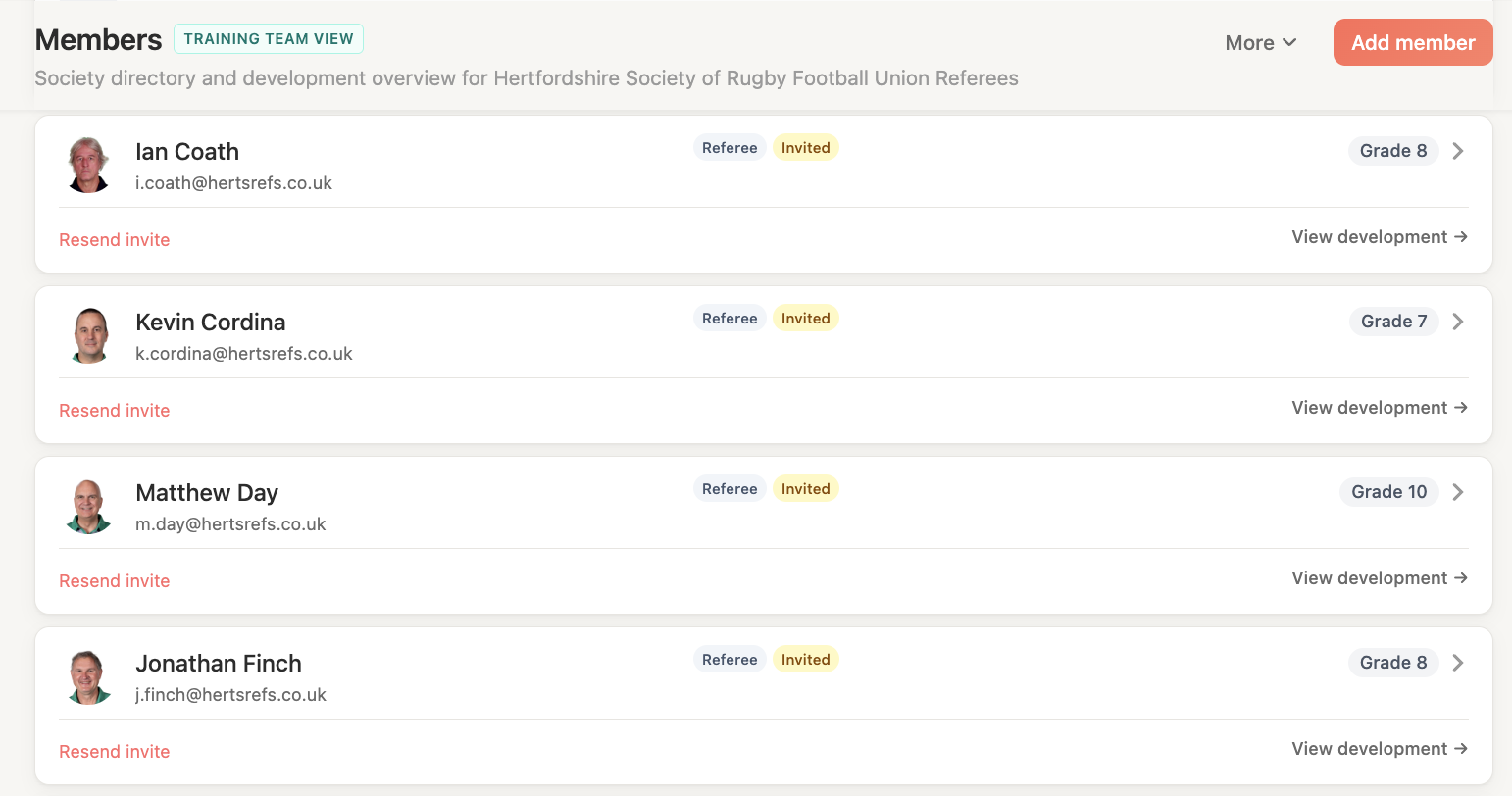
Members are the people in your society who use RefMatch. Each member is assigned one or more roles that control what they can see and do.
Who can do this?
| Role | Can manage members? |
|---|---|
| Society Admin | Yes |
| All others | No |
Inviting a new member
- Go to Admin > Members
- Click Add member
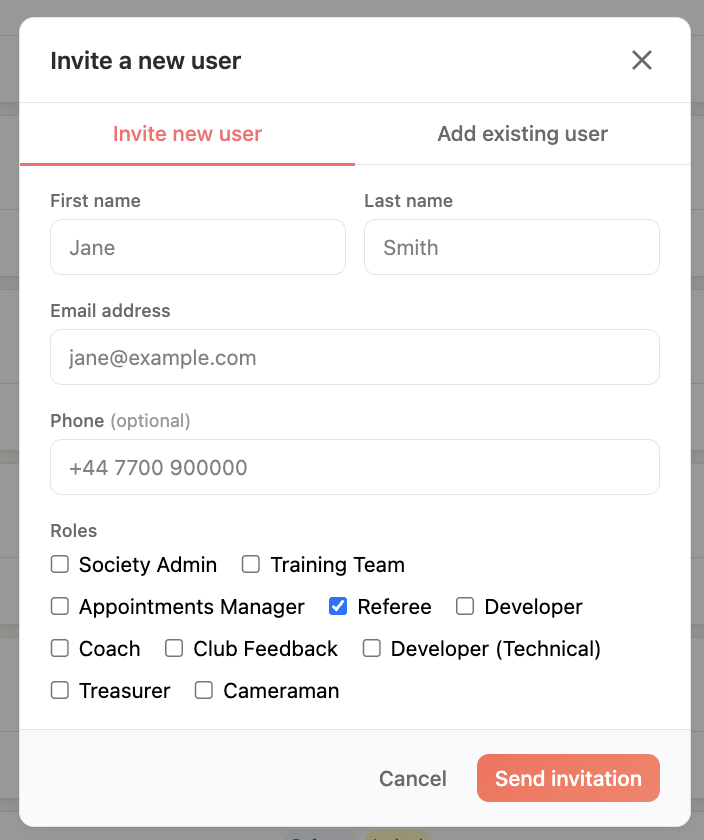
- Enter the member's first name, last name, and email address
- Select their role(s) from the dropdown
- Click Send invitation
The member receives an email with a link to set up their RefMatch account. Until they accept the invitation, they appear in the member list with an invited status.
Note: The email address must be unique within RefMatch. If the address is already registered (e.g. the person is in another society), they will be linked to their existing account.
Assigning multiple roles
A person can have more than one role. Common combinations:
| Combination | Use case |
|---|---|
REFEREE + MOD | Senior referee who also writes development reports |
APPOINTMENTS_MANAGER + SOCIETY_ADMIN | Admin who also runs the appointments process |
REFEREE + TRAINING_TEAM | Referee who is also part of the coaching team |
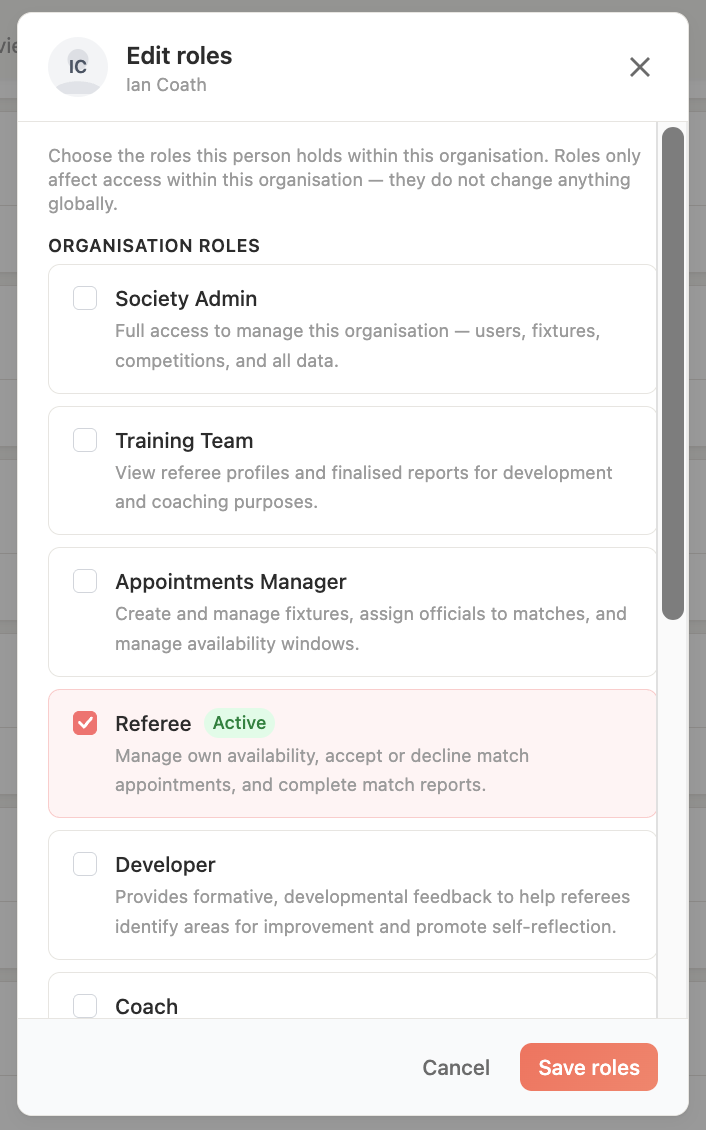
To add a second role, open the member's profile and click Edit roles.
Editing a member's roles
- Go to Admin > Members
- Find the member and click on their name
- Click Edit roles
- Add or remove roles as needed
- Click Save
Changes take effect immediately - the member does not need to log out.
Importing members in bulk
To add multiple members at once:
- Go to Admin > Members and click Import
- Download the CSV template
- Fill in one row per member: first name, last name, email, roles (comma-separated)
- Upload the CSV and review the preview
- Click Import
Removing a member
To remove a member from your society:
- Find the member in Admin > Members
- Click the actions menu (three dots) and select Remove from society
- Confirm the removal
Warning: Removing a member revokes their access to the society. Their historical data (appointments, reports) is retained. This action cannot be undone from the UI - contact RefMatch support if a removal was made in error.
Removed members do not receive a notification.
Member statuses
| Status | Meaning |
|---|---|
active | Member has accepted their invitation and can log in |
invited | Invitation sent but not yet accepted |
inactive | Member has been deactivated (no login access) |