
Submitting an expense claim
After refereeing a match, you can submit an expense claim in RefMatch for travel and any other approved costs. Your society's treasurer will review the claim and mark it as paid when processed.
Who can do this?
| Role | Can submit expenses? | Can view expenses? |
|---|---|---|
| Referee | Yes - own claims | Yes - own claims only |
| Treasurer | No - review only | Yes - all claims |
| Society Admin | No - review only | Yes - all claims |
Before you start
Check with your society about what expenses are claimable and what rates apply (e.g. pence per mile for travel). This varies by society.
Submitting a claim
- Go to Finances in the main navigation
- Click New claim or Add expense
- Select the match this expense relates to (search by date or competition)
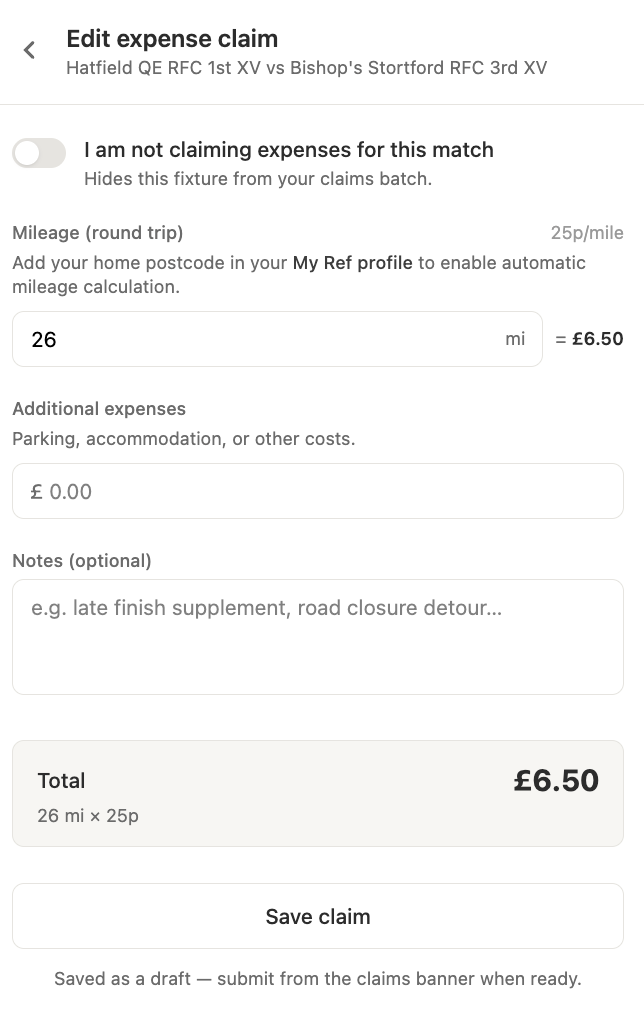
- Enter the expense details:
- Type - e.g. mileage, accommodation, kit
- Amount - the total cost or mileage to claim
- Notes (optional) - any additional context for the treasurer
- Click Submit claim
Your claim is now visible to your society's treasurer for review.
Tip: Submit expenses promptly after each match. Some societies have a deadline for expense submissions each season.
Tracking your claims
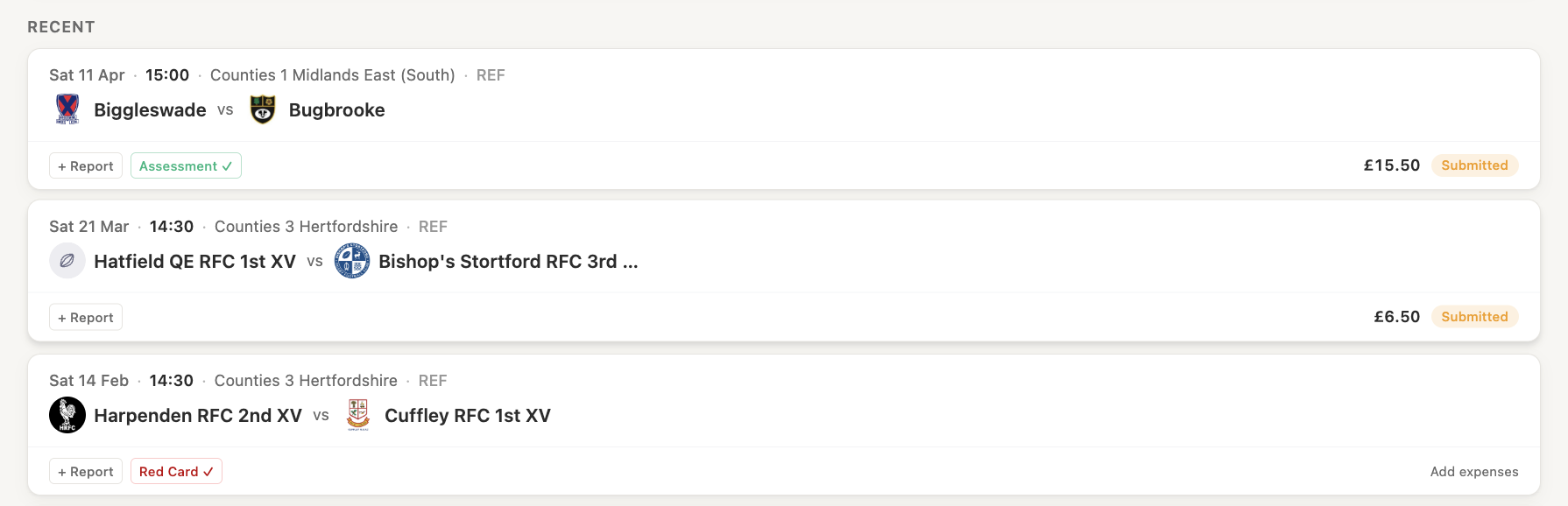
On the Finances page, your claims are listed with their current status:
| Status | Meaning |
|---|---|
submitted | Claim has been submitted and is awaiting review |
paid | Treasurer has marked the claim as paid |
If you believe a claim has been paid but it still shows as submitted, check with your society treasurer.
Editing or deleting a claim
You can edit or delete a claim that is still in submitted status:
- Find the claim in Finances
- Click on it to open the detail
- Click Edit to update, or Delete to remove it
Note: Once a claim has been marked as
paidby the treasurer, it cannot be edited or deleted.
Multiple expenses on one match
You can add multiple line items to a single match. For example, mileage plus a parking fee would be two separate entries, both linked to the same fixture.