
Writing and finalising an RMDE report
An RMDE (Referee Match Development and Evaluation) report is a structured assessment of a referee's performance on a specific match. It is written by a Match Official Developer (MOD) or Match Official Coach (MOC) and shared with the referee as part of their ongoing development.
Who can do this?
| Role | Create / edit draft | Submit for review | Finalise |
|---|---|---|---|
| MOD | Yes | Yes | Yes |
| MOC | Yes | Yes | Yes |
| Training Team | No - read only | No | No |
| Society Admin | No | No | No |
| Referee | No - read own only | No | No |
Note: MOD and MOC have equivalent permissions in RefMatch. The distinction is organisational - MOD is typically a society role; MOC is a higher-performance coaching role.
RMDE report lifecycle
Draft -> Ready -> In Review -> Agreed -> Finalised| Status | Who controls it | What it means |
|---|---|---|
draft | MOD / MOC | Report is being written - not visible to the referee yet |
ready | MOD / MOC | Report is complete and ready to be shared |
in-review | MOD / MOC | Report has been shared with the referee for discussion |
agreed | MOD / MOC + Ref | Referee and developer have discussed and agreed the report |
finalised | MOD / MOC | Report is locked and becomes part of the development record |
Step 1 - Create a draft report
- Go to Reports or the Development section in the navigation
- Click New report
- Select the fixture the report relates to
- Select the referee being assessed
- The report form opens with the RMDE framework sections
Fill in the report sections. The RMDE framework covers key competency areas including:
- Game management
- Set piece
- Safety
- Laws application
- Communication
Each section has structured questions and a rating scale. You can save the report as draft and return to it later.
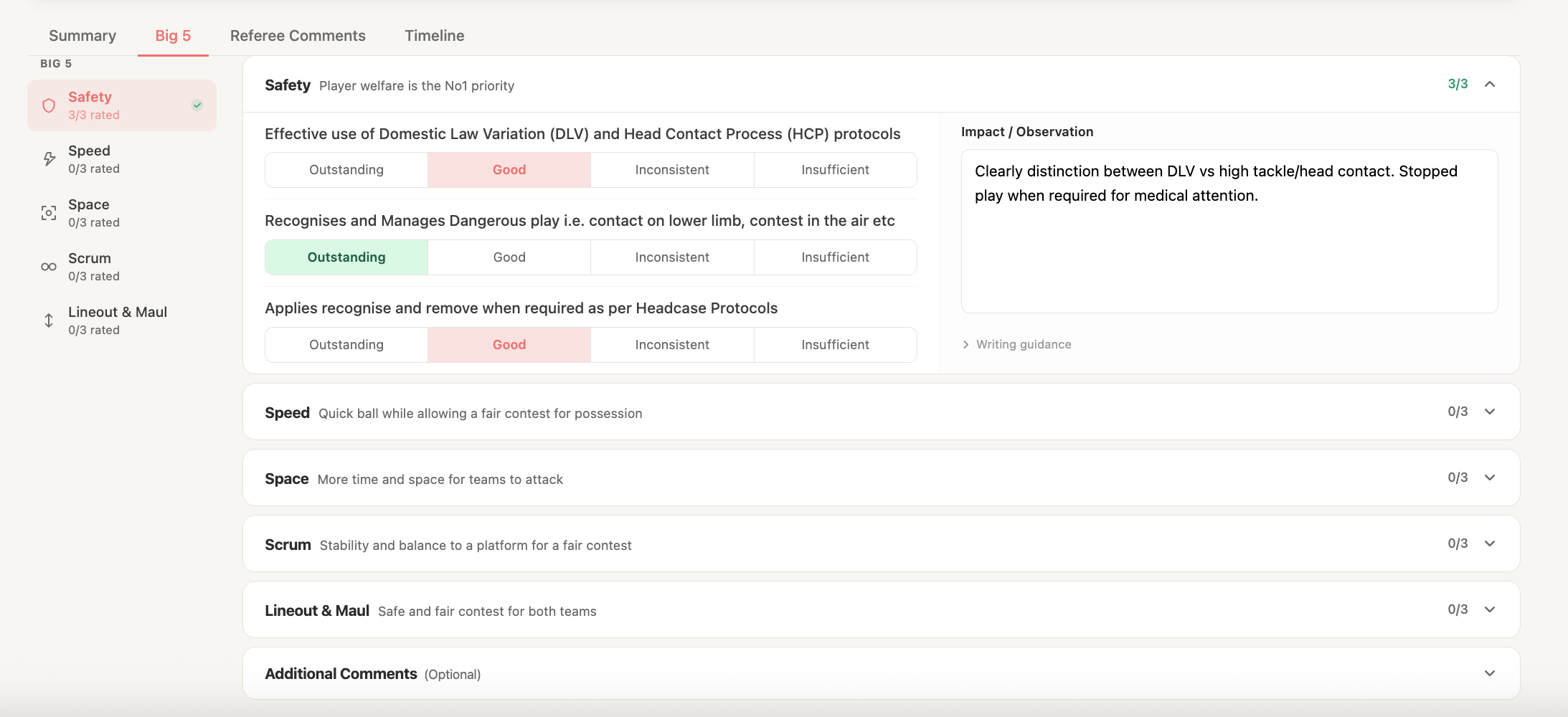
Step 2 - Complete the report
Work through all sections of the RMDE form. Required fields must be completed before the report can be moved forward.
Tip: Use the Notes field in each section to add specific examples from the match. Specificity makes the feedback more valuable for the referee's development.
When all sections are complete, click Mark as ready. The status moves to ready.

A ready report is still not visible to the referee.
Step 3 - Share with the referee (In Review)
Once the report is ready, you can share it with the referee for discussion.
Click Share with referee. The status moves to in-review and the referee receives a notification that a development report is available.
Note: Once a report is shared, the referee can read it. You can still make minor edits at this stage, but significant changes should be discussed with the referee.
Step 4 - Discuss and agree
After the referee has read the report, you should discuss it with them (in person or via video call, as per your society's process).
When both parties are satisfied, click Mark as agreed. The status moves to agreed.
The referee may also be asked to complete a self-reflection at this stage - see the reflection workflow if your society uses this step.
Step 5 - Finalise the report
Once the post-match discussion is complete, click Finalise report.
The report status moves to finalised and the record is locked. The finalised report becomes part of the referee's permanent development record, visible to the training team and society admins.
Warning: Finalising a report is irreversible. The report content cannot be edited after finalisation. Check all sections are correct before finalising.

Viewing a referee's development record
All finalised reports for a referee are visible in their development profile. Training team members and MODs/MOCs can access this via Members > [Referee name] > View development.