
Assigning officials to a match
Once fixtures are created, the appointments team works through the appointment queue (also called the walkthrough) to assign the right official to each role on each fixture.
Who can do this?
| Role | Can assign officials? |
|---|---|
| Society Admin | Yes |
| Appointments Manager | Yes |
| Referee | No |
| MOD / MOC | No |
| Training Team | No |
Before you start
- Fixtures must exist and be in
confirmed(ordraft) status - Officials must have active profiles in the society
- It helps to have checked availability first - see Understanding availability
The appointment queue (walkthrough)
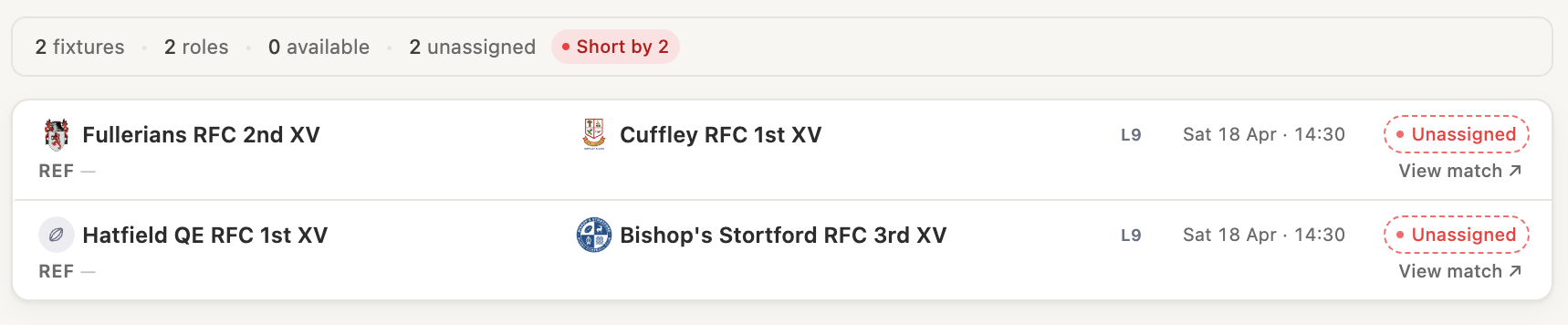
Go to Appointments in the navigation. The appointment queue shows all fixtures that have one or more unfilled official roles, ordered by date.
Each fixture card shows:
- Date, competition, and teams
- The role slots: Referee, AR1, AR2, Assessor
- For each slot: whether it is
unassigned,pending, orconfirmed - Each official's availability indicator for that date
Work through the queue one fixture at a time.
Step 1 - Select a fixture
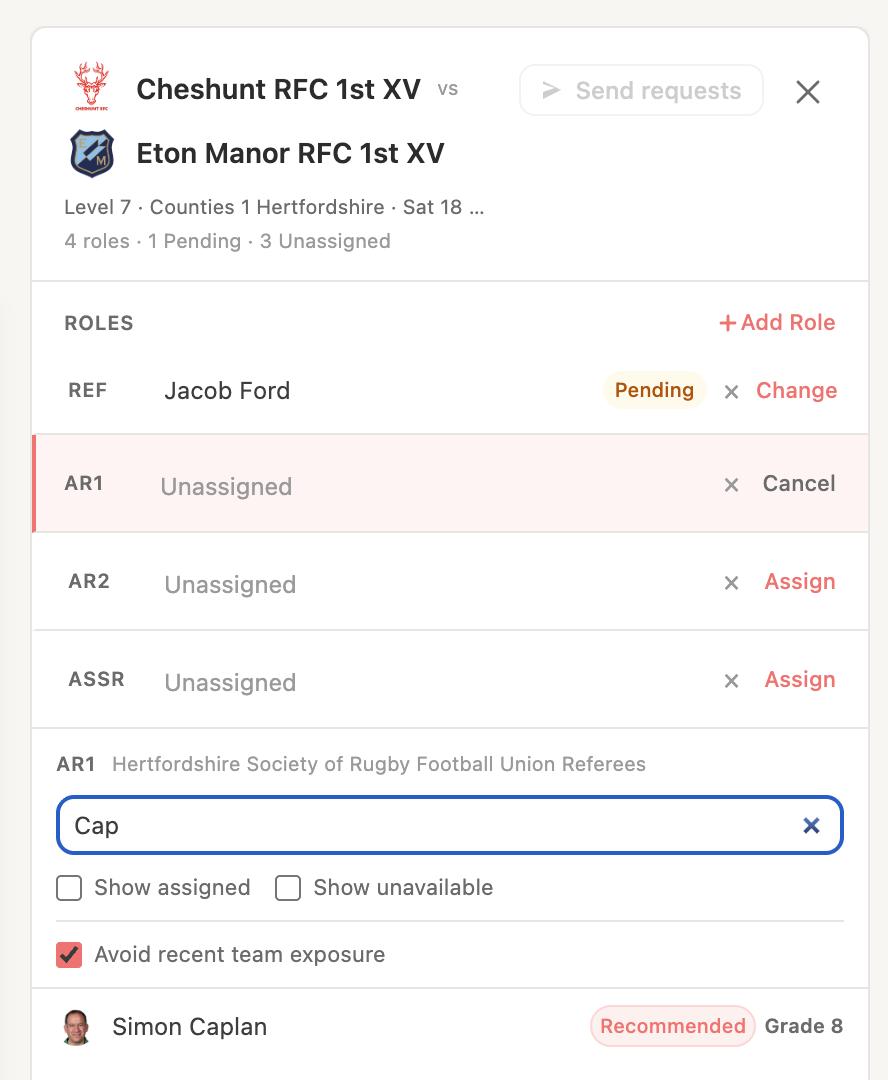
Click on a fixture in the queue to open its appointment panel.
You will see the four role slots (or fewer, if required roles were limited when the fixture was created) and the list of available officials.
Step 2 - Review availability
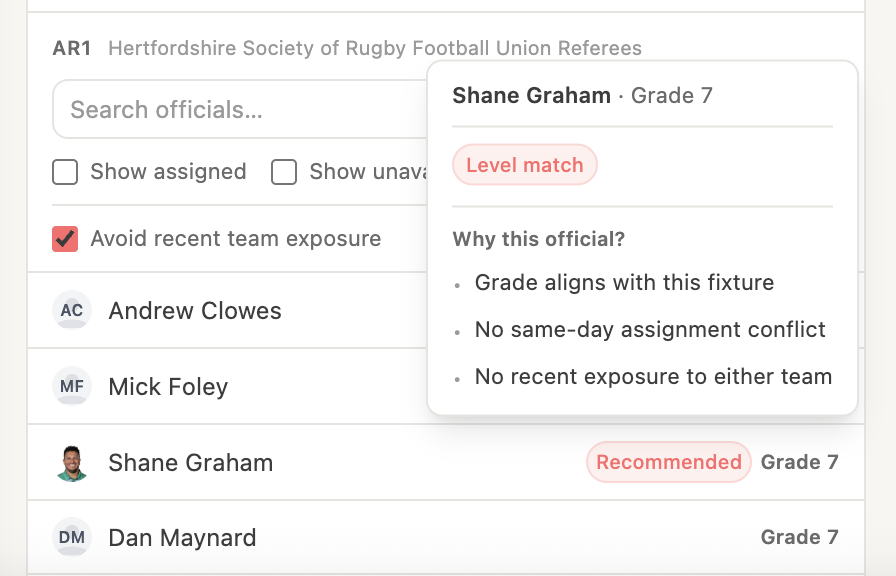
For each role, the official list shows:
- Green - official has marked themselves available for this date
- Amber - official has not yet responded (no availability set)
- Red - official has marked themselves unavailable
Tip: Prefer officials marked as available. Officials with no response can be assigned, but they are less likely to confirm quickly.
Step 3 - Assign an official to a role
- Click the role slot you want to fill (e.g. Referee)
- The official picker opens - search by name or filter by availability
- Select the official
- The slot updates to
pendingand the official is notified
Repeat for each unfilled role on the fixture.
Note: You can assign the same official to only one role per fixture.
Step 4 - Repeat for all fixtures
Work through the queue until all required roles for the upcoming weekend are filled.
Use the filter controls at the top of the Appointments page to focus on:
- A specific date range
- A specific competition
- Only fixtures with unfilled roles (
unassignedfilter)
Reassigning an official
If an official declines an appointment or you need to change an assignment:
- Open the fixture in the queue
- Click the assigned official's name on the role slot
- Select Remove to clear the slot, then assign a new official
Warning: Removing a confirmed official will send them a notification that they have been unassigned. Only do this if necessary and consider informing them directly.
Bulk assignment
For fixtures that repeat the same panel (e.g. a regular Saturday squad), you can copy an appointment panel from one fixture to another:
- Open a fixture with a complete, confirmed panel
- Click Copy panel
- Select the target fixture
- Review and save
The appointments will be created as pending on the target fixture - officials will still need to confirm.
What happens next?
After an official is assigned:
- Their appointment status is
pending - They receive a notification inviting them to confirm
- Once they click Confirm in RefMatch, the slot changes to
confirmed - The fixture is considered fully appointed once all required roles are
confirmed
If an official does not confirm before your society's deadline, you will see the slot flagged on the Appointments page.
Appointment statuses explained
| Status | Meaning |
|---|---|
unassigned | No official has been assigned to this role yet |
pending | An official has been assigned and notified but not confirmed |
confirmed | Official has confirmed their appointment |
declined | Official was invited but declined |